Using the Polish National e-Invoice System (KSeF) platform (Polish legislation)
Introduction
Poland has a national e-Invoice system (KSeF) platform that businesses can use. It provides an e-invoice structure and helps to standardise e-invoice transactions. As a result, Exact Globe+ also provides the facility where users can take advantage of this e-invoice platform.
The KSeF works based on receiving and sending back e-invoices. Exact Globe+ processes e-invoices and makes sure that incoming and outgoing e-invoices are compatible with the KSeF requirements.
Before you begin
Before you use the functionality, you must first set up the following master data:
- Company data settings - To determine if the administration will communicate with the live or test portal for KSeF.
- Document settings - You must define the invoice layout and use the KSeF invoice template to customise the KSeF submission fields.
- Invoice code maintenance - You must define which invoice code is used for the KSeF submission and other normal invoices.
- Certificate management - You must obtain a valid certificate issued by KSeF to connect to the KSeF portal.
National e-Invoice system (KSeF) settings
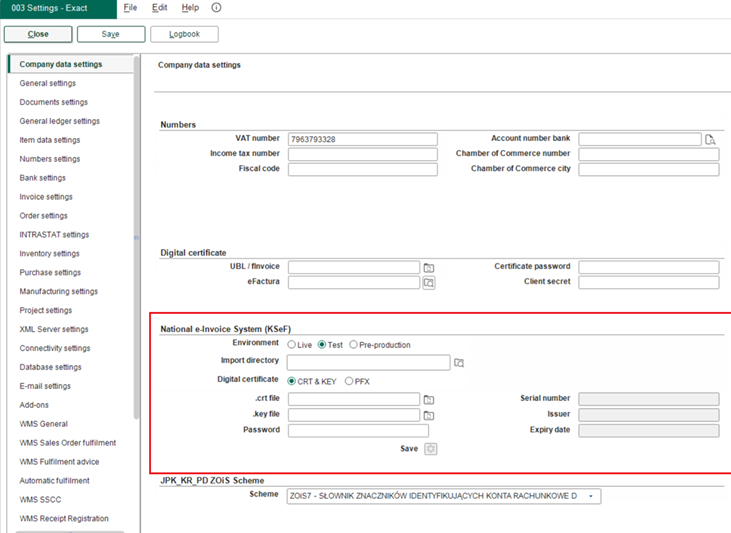
You can find the National e-Invoice System (KSeF) section at System > General > Settings > Company data settings. This setting allows you to choose whether to use the live, test, or pre-production KSeF environment together with the settings for the KSeF reference and KSeF certificate.
To test and validate e-invoicing processes before going live, select the Pre-production option at the Environment field. Using this environment helps ensure your systems are prepared for the mandatory use of KSeF, minimising risks and ensuring compliance.
KSeF invoice layout
The E-Invoice: KSeF layout field is found at System > General > Settings > Documents settings. You can use this layout to retrieve the values to generate the XML file for the KSeF e-Invoice submission. If you want any fields to be included in the XML file submission you have to add the data to this layout. The default layout is “PLKSEF01”. If this layout is not available, you can import the “PLKSEF01.fkl” layout file from the /etc folder in the Exact Globe+ installation folder.
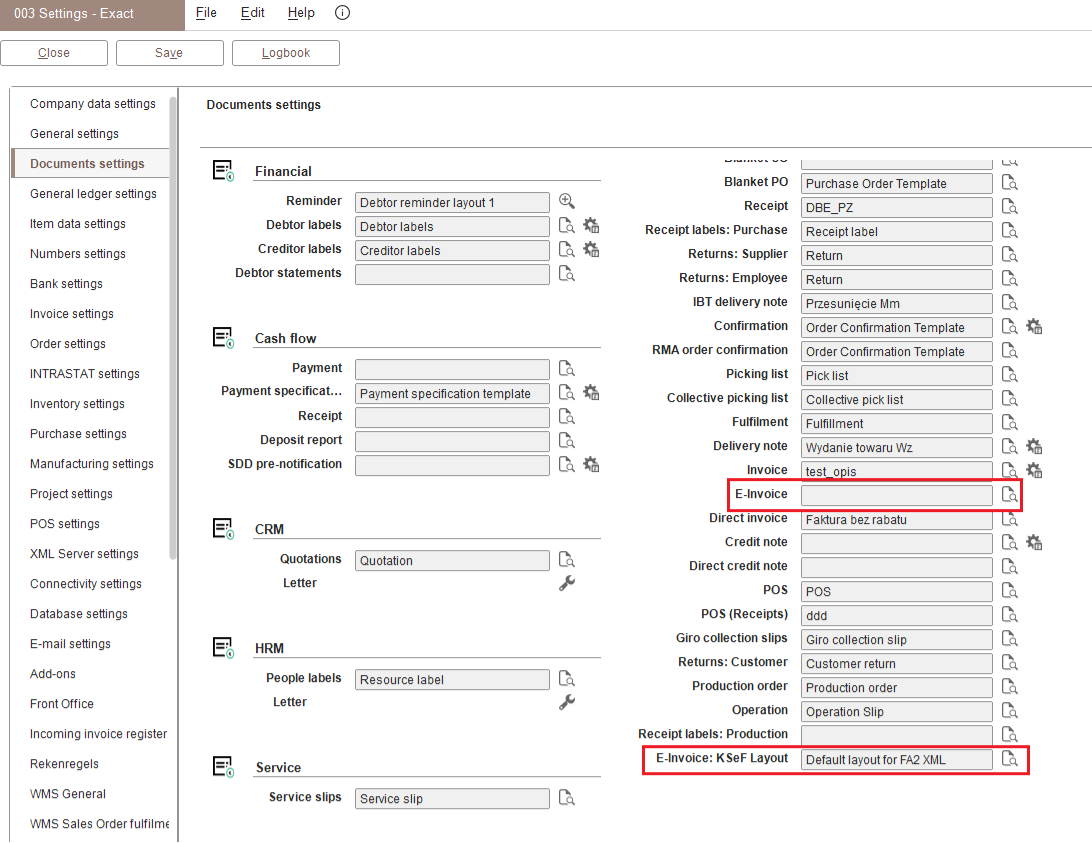
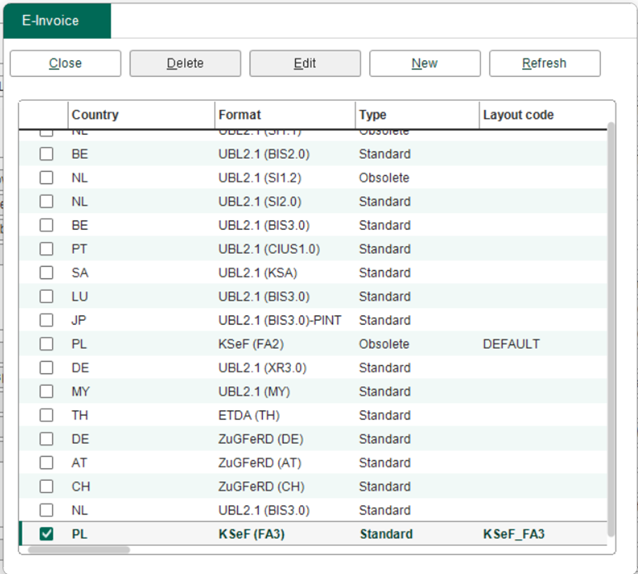
You can choose from two templates at the E-Invoice field. The template you choose is used for generating the KSeF XML format and determines the output format. There are two templates available:
- “EInvoice.Template.PL.FA2.xml” for invoices
- “EInvoice.Template.PL.FA2.CN.xml” for credit notes
The invoice template is used by default. If you want to import the credit note template, you can import the XML template by clicking the New button and selecting the XML template from the /XML folder in the Exact Globe+ installation.
You can edit the template by customising the fields. However, the fields must be added to the KSeF layout first before adding them to the e-Invoice XML template.
Additionally, you can add the QR code, KSeF reference, and verification link in the invoice layouts. To add them, you must first add the database fields under the Header block at System > General > Settings. The QR code, KSeF reference, and verification link will be displayed in the invoices when you process the incoming and outgoing invoices.
- When downloading invoices at , the verification link is retrieved directly from the KSeF API during the download process. The hash component will not be generated locally in Exact Globe+.
- When submitting invoices at , Exact Globe+ recalculates the verification link using the KSeF 2.0 syntax before attaching it to the invoice. Each submitted invoice therefore contains the correct QR verification link. Clicking the link redirects you to the official KSeF page, providing a reliable way to confirm the validity of the invoice.
Invoice code
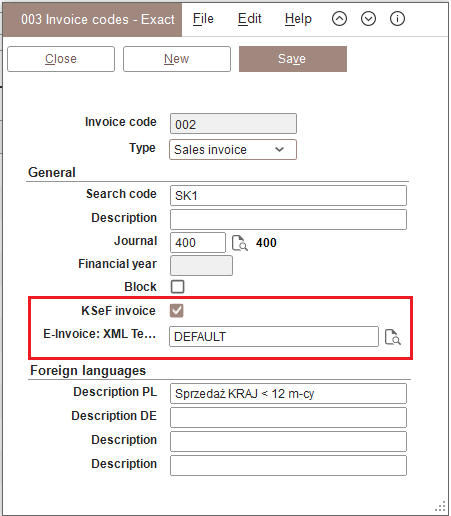
The KSeF invoice checkbox is added in the General section at System > Logistics > Invoice codes. This checkbox allows you to define which invoice code you want to use for the KSeF invoice submission. You can select the XML template that you want to use for the invoice code at the E-Invoice: XML Template field.
Custom layout per invoice code
In addition to selecting the XML template, you have to define a customised invoice layout for each invoice code at Layout in the Invoice codes screen. This field is mandatory.
If the Layout field is not defined, the layout defined at E-Invoice: KSeF layout in System > General > Settings > Document settings will be displayed in the Layout field.
With the Layout and E-Invoice: Template fields, you can have a different set of a customised XML template and an invoice layout for each invoice code, such as an invoice code configured for normal invoices and another invoice code for credit notes.
If the KSeF invoice checkbox in the Invoice codes screen is not selected, both the E-Invoice: Template and Layout fields will be disabled.
Before you can define a customised XML template and an invoice layout in the invoice code, both the customised XML template and invoice code must be defined in Document settings.
- A customised XML template must be defined at E-Invoice.
- A customised invoice layout must be imported to E-Invoice: KSeF Layout.
Certificate management
You must obtain a valid certificate issued by KSeF to connect to the KSeF portal. This certificate will be used to authenticate the organisation and generate an authentication key. The authentication key authorises the credentials for subsequent operations, such as submitting e-Invoices to KSeF or downloading invoices from the portal. You can go to the test portal https://web2te-ksef.mf.gov.pl/ to authenticate and generate the authentication key.
Connecting to KSeF API
You can connect to the KSeF API by defining the fields in the National e-Invoice System (KSeF) section at .
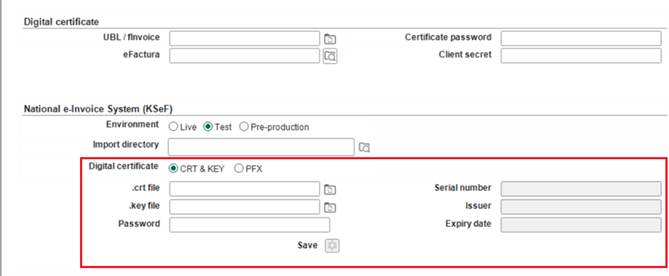
Certificate maintenance
The certificate is generated in the KSeF portal, uploaded, and added to Exact Globe+. Each environment has one certificate and it is shared among all the users. If the Serial number, Issuer, and Expiry date fields are blank, there are no active certificates saved in the environment. The certificate obtained from the KSeF portal contains the “.crt” and “.key” files. You can update the digital certificate by selecting the option at Digital certificate.
If you select CRT & KEY in the Digital certificate field, the .crt file and .key file fields will be shown.
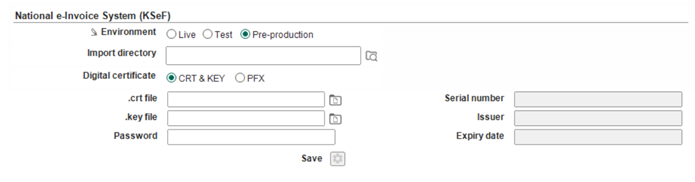
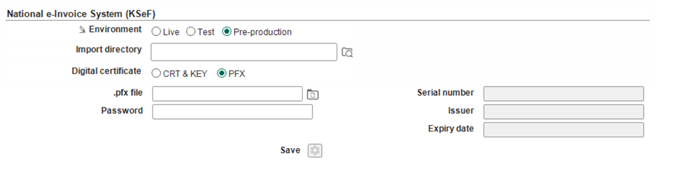
If you select PFX in the Digital certificate field, the .ptx file field will be shown.
Once the certificate is saved, the Serial number, Issuer, and Expiry date fields will be automatically filled in.
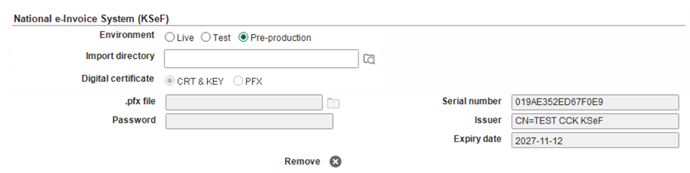
You can have three certificates saved in every Exact Globe+ application (one certificate for each environment). If you change the environment option without clicking Save, Exact Globe+ will automatically check for the active certificates that are saved in the environment.
Batch submission of invoices to KSeF
Invoices are submitted in batches to KSeF. This allows multiple invoices to be grouped and submitted in a single request.
Creating batch invoices
Invoices are grouped into batches and submitted to KSeF. The processing status will be monitored until completion. There are two ways to send invoices from Exact Globe+ to the KSeF portal:
- – Each invoice will be sent individually using synchronous API calls.
- – Invoices are submitted in batches in a single request.
Printing and processing batch invoices
All the selected invoices in the screen will be submitted to the KSeF portal in a batch. The system will generate the XML file for each invoice, and the XML files will be compressed into a zip file and submitted to the KSeF portal. The invoice processing is limited to a batch size of 1000 records. You can select up to 1000 invoices and process the invoices in a single operation. If more than 1000 invoices are selected, a notification will be displayed. If you have to process more than 1000 invoices, process 1000 invoices at a time until all the invoices have been processed.
Preparing batch invoices
Before the batch invoices are sent to KSeF, the following preparations are required:
- Exact Globe+ will prepare a zip file containing all the invoices for the batch submission.
- The invoices in the archive must match the invoice schema declared in the batch session open request.
- The size of the invoice is limited to 1MB.
- The maximum size of the batch invoice is 5GB.
- The batch invoice is divided into one or more file parts for the upload. Each file part has a maximum size of 100MB.
- The maximum number of file parts is 50.
Submission of batch invoices to KSeF
After preparing the batch invoices, you can submit them to KSeF as follows:
- Open batch session – Exact Globe+ will initiate the batch session by calling the KSeF batch API. This includes a unique session identifier and a temporary upload URL.
- Upload batch invoices – The ZIP file containing all the invoice XMLs will be uploaded to the provided URL.
- Close batch session – Once the batch invoice upload is complete, Exact Globe+ will send a request to close the batch session. KSeF will then validate the submitted invoices.
- Query batch status – Exact Globe+ will query the batch session to determine whether the batch invoice has been processed successfully. The batch invoice status will provide the overall confirmation of the batch invoice submission.
KSeF will validate the batch invoice once it is submitted. If there are errors in the batch invoice, the entire batch invoice will be rejected, and the invoices will not be processed. The rejected batch invoice will return a failure status. If the batch invoice submission is successful, KSeF will validate all the invoices in the batch. The batch invoice status will only confirm whether the batch invoice is accepted or processed.
Receiving status from KSeF
After the batch invoice submission has been successfully processed, go to to view the validation results for the individual invoices. Select the invoices with the “Not validated” status in the overview and click Process. The system will retrieve the validation outcome from KSeF to determine whether the selected invoices have been accepted or not.
Limitations
If you select only an invoice from and click Process, the system will still send the invoice using the batch invoice method. This will consume batch session resources which will use the overall API usage quota. Frequent use of single line batch submissions can lead to faster consumption of available limits. You should reserve the batch invoice processing for multiple invoices to optimise efficiency and avoid exceeding API thresholds.
Another limitation is the upload timing and file size. Each file part in a batch upload has a maximum size of 100MB and must be uploaded within 20 minutes. A session can contain 50 file parts, so the total upload time allowed is calculated as the number of file parts multiplied by 20 minutes. You must have a stable and reliable internet connection to avoid session expiration or incomplete uploads, especially when handling large batches.
How Exact Globe+ processes invoices sent to and received from KSeF
Handling outbound invoices
Exact Globe+ handles sales invoices as outbound invoices to KSeF. These are listed on the Outgoing e-invoices screen. When you select the relevant sales invoices and click the Process button, the following will occur:
- The KSeF XML file will be generated. This file is then sent to the KSeF portal for processing.
- After KSeF has validated and accepted the invoices, it will respond with the KSeF reference IDs and acceptance dates.
- If the status is not accepted, you must make the necessary changes and go through the initial processing again to generate the KSeFXML, and submit it to the KSeF portal. The free field values must be provided when processing the invoice at Invoice > Entries > Invoices.
You can view invoices that have been processed and sent to KSeF at Invoice > Invoice > National e-Invoices System (KSeF) > Outgoing e-invoices.
Handling KSeF API limitations
Exact Globe+ manages the API limits defined by KSeF. The system automatically retrieves the current API quota associated with your instant electronic fund transfer platform (NIP) and stores it with a timestamp. This ensures that quota checks are always tied to the correct date. When you process invoices at , the system compares the number of selected records with the stored API limit. If the selection equals the limit, a warning is displayed to indicate that the next action will use the remaining quota. If the selection exceeds the available limit, you will be prompted to reduce the number of records before continuing.
The API limit is refreshed automatically every day. Exact Globe+ enforces the KSeF thresholds of 30 requests per second and 120 requests per minute. Since one record equals one request, you should remain within these limits when processing large batches of invoices.
Correction invoices without KSeF ID
Exact Globe+ supports correction invoices even when the original invoice does not have a KSeF ID. The <NrKSeFN> flag handles invoices issued outside of KSeF. You must include the following line in the template:
<NrKSeFN default="1">
This affects all existing templates. Update your layouts accordingly.
Processing scenarios
The system will distinguish between the following scenarios. The system will prioritise scenario 1.
Scenario 1: Invoice issued from KSeF
The system will automatically populate the values:
- <DataWystFaKorygowanej> - This shows the original invoice date.
- <NrFaKorygowanej> - This shows the original invoice number.
- <NrKSeF> - This indicates invoices that originate from KSeF (default set to “1”).
- <NrKSeFFaKorygowanej> - This shows the original KSeF reference ID.
Scenario 2: Invoice issued outside of KSeF
- The system will not populate any values. Template values will be used instead.
- You can hardcode the defaults or map the values according to the layout:
- <DataWystFaKorygowanej> - This is set by the user.
- <NrFaKorygowanej> - This is set by the user.
- <NrKSeFN> - This indicates invoices issued outside of KSeF (default set to “1”).
Handling inbound entries
Exact Globe+ handles inbound invoices received from KSeF as purchase entries. You can manage the purchase invoices at Finance > Entries > National e-Invoices System (KSeF) > Incoming e-invoices. You need the necessary rights to download purchase invoices.
Additionally, you can automatically create new creditors when you download the invoices by selecting the Create master data option in the Download options section.
When you click the Download button in the Incoming e-invoices screen, the following will occur:
- The KSeF XML file is received and the inbound invoices are automatically allocated based on creditor name and VAT number.
- Inbound invoices can be automatically approved or rejected based on your specified white- and blacklist. You can manage the whitelist by clicking the Creditors by categories button in the Download options section.
- You can go through the list and approve the relevant invoices. You can also route them for processing as standard, IIR or PLOFKE invoices.
- Finally, click Import to import the inbound invoices. The purchase entries will be generated accordingly.
The status of the invoices will be updated accordingly after the invoices have been allocated, approved, rejected or processed.
You can import new entries even if the same KSeF reference number already exists, provided the invoice status is not yet Completed (C) or Processed (P). After import, the records in the Incoming e-Invoices screen are automatically moved to . Once validation is complete, these records will no longer appear in the Incoming e-Invoices screen.
When the Create master data option is selected, Exact Globe+ not only creates new creditors but also automatically creates and/or links bank accounts provided in the XML (FA3) file. This ensures that creditor and bank account information are correctly aligned during invoice download. The following rules apply:
- Master data is enabled, no creditor, no bank account – A new creditor and bank account are created during download. The bank account is linked to the creditor.
- Master data is enabled, creditor exists, no bank account – A new bank account is created during download and linked to the existing creditor.
- Master data is enabled, no creditor, bank account exists – A new creditor is created during download and linked to the existing bank account.
- Master data is disabled, creditor exists, no bank account – The bank account is not created during download. An error message is displayed.
Supported invoice types
Exact Globe+ supports the import of the following KSeF invoice types:
-
Basic invoices (Faktura Podstawowa)
-
Advance invoices (Faktura zaliczkowa)
-
Correction invoices (Faktura korygujaca)
Exact Globe+ currently supports the import of the following KSeF invoice types with certain limitations:
- Basic invoices – Only standard invoices that comply with the FA(3) schema are supported.
- Basic correction invoices – Must contain at least one <FaWIersz> element (invoice line).
- Advance invoices – Must include at least one of the tags from P_13_1 to P_13_10 and the P_15 field must be greater than zero.
- Unsupported invoices – Other invoice categories, such as advance correction invoices and settlement invoices, are currently not supported for import.
Note: These limitations will be addressed in the upcoming Exact Globe+ service packs.
Validate KSeF
You can include the KSeF ID in all the sales and purchase entries through the XML import, SDK, and entity. However, these entries will only pass the initial format validation. To complete validation, the KSeF ID must match the corresponding HTML file from the KSeF portal, ensuring it is correct and linked to the right entry. Validating the HTML from the KSeF portal enhances financial data accuracy and compliance. This allows you to manage and validate KSeF IDs in the financial entries using HTML files downloaded from the KSeF portal without integrating with the KSeF system.
To validate KSeF HTML and financial entries, go to .
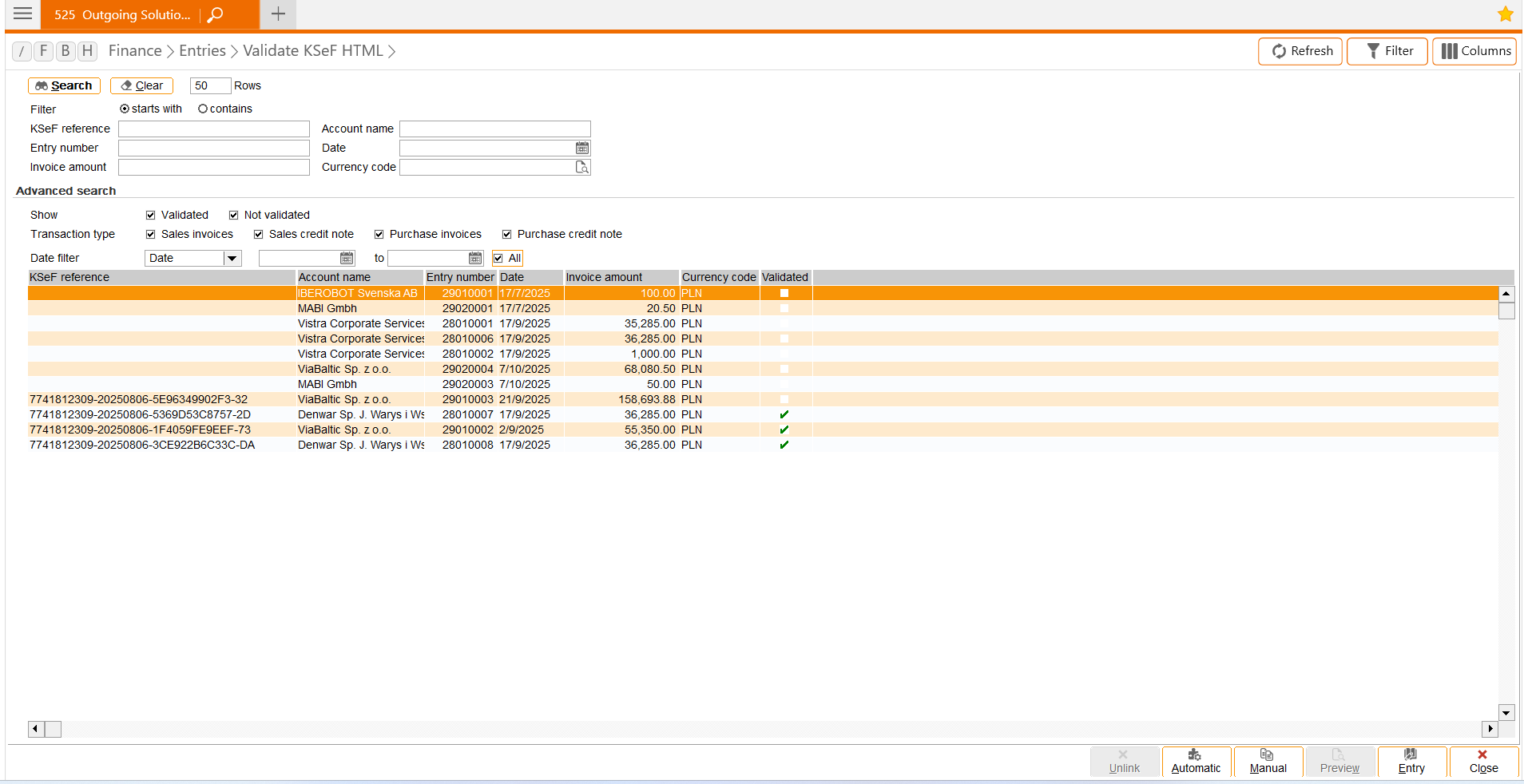
If records are already allocated in the Incoming e-Invoices screen and you manually download XML files from the KSeF portal, you can validate them in the Validate KSeF HTML screen by selecting Manual > Validate. After validation, the records are removed from the Incoming e-Invoices screen.
Handling KSeF ID visibility and extended invoice number
Each invoice downloaded from KSeF contains a unique identifier (KSeF ID) that is displayed in the financial entries edit screen. Exact Globe+ supports invoice numbers up to 200 characters. The full invoice number is displayed with the KSeF ID in the financial entries edit screen for JPK_VDEK reporting. The KSeF Reference / Validation field shows the KSeF ID and indicates whether the entry has been validated against the KSeF portal. The Invoice reference column displays the full invoice number, while the Extra reference column in the validation screen reflects the complete invoice number from the KSeF portal.
Note: The Invoice reference column is currently limited to visibility and reporting. The validation process still relies on the existing 30-character invoice number field, so invoices with numbers longer than 30 characters may continue to fail validation until the logic is extended.
Import file directory settings
You can define the default directory path where all the KSeF invoice HTML files that are downloaded from the KSeF portal will be stored. These files will be used for matching.
Select the directory of the HTML files at Import directory in the National e-Invoice System (KSeF) section at .
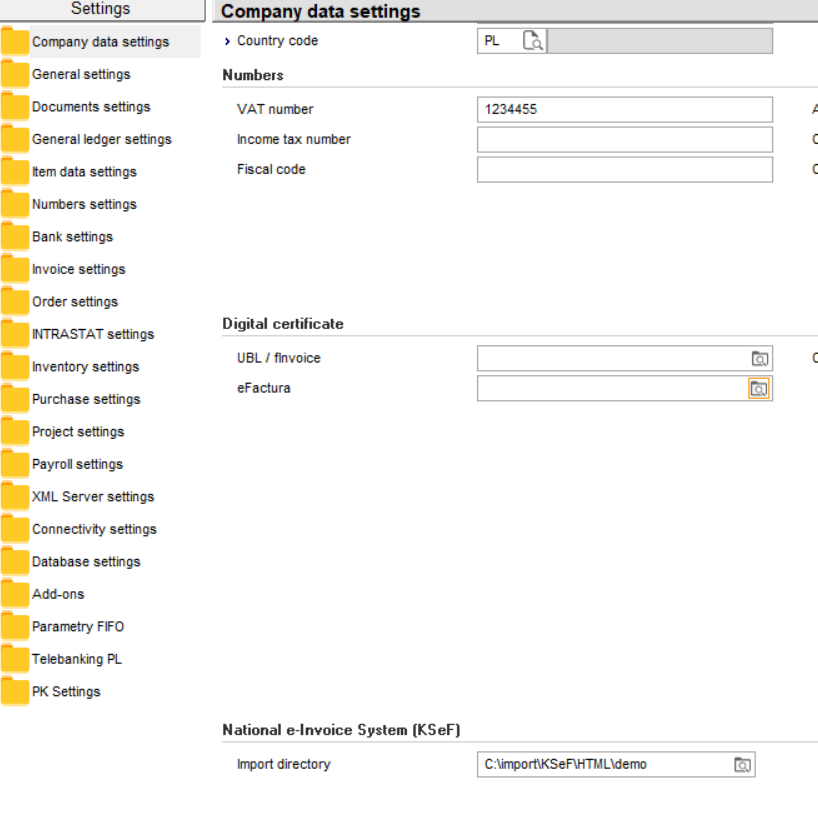
Validation conditions
The following conditions are required before you validate the entries:
- You have defined the Import directory field in the National e-Invoice System (KSeF) section at .
- The KSeF files have been retrieved from the KSeF portal and saved with the .html extension.
- The financial entries exist in the sales and purchase journals (entries from the general journals are excluded) and contain valid KSeF references with the correct format.
Automatic validation
If you want to validate all the HTML files in the import file directory with the sales and purchase entries, do the following:
- Go to .
- Click Automatic.
- A message will be displayed. Click OK to continue.
The system will do the following:
- Retrieve all the HTML files from the defined import directory.
- Extract the contents from each file.
- Match the extracted data with the sales and purchase entries using the KSeF reference.
Matched HTML files are automatically moved to an archive folder in the same path as the Import directory. A copy of each matched file is also saved as a document attachment linked to the financial entry.
If you click Automatic in the Validate KSeF HTML screen, all the HTML files in the import directory will be processed and matched with the sales and purchase entries that contain KSeF references, regardless of whether the record is displayed in the overview.
Manual validation
You can validate the HTML file manually if you only want to validate one HTML file.
- Go to .
- Click Manual. You will see the manual HTML overview screen.
-
Double-click on a line in the overview that you want to validate, and a check mark will be displayed under the Selected column.
- Click Validated.
- The contents will be retrieved from the selected file and matched with the sales and purchase entries using the KSeF reference.
- The matched result will be displayed under the Response message column. You can then link or unlink the entries.
- The successfully matched HTML files will be moved to the archive folder which will be automatically created within the same path as the Import directory.
- A copy of each matched HTML file will be saved as a document attachment and linked to the financial entry.
Matching process
The following will be taken from the HTML and used in the matching process:
- Invoice number
- KSeF reference
- Seller tax number
- Buyer tax number
- Invoice date
- Invoice amount and currency
If the financial entries are created without KSeF reference, the debtor or creditor tax number is required.
Validation error
If matching fails during automatic or manual validation, you can rectify the problem.
There is only one HTML file but there are multiple entries that match the criteria
There might be multiple financial entries sharing the same Our ref. or Your ref., which prevents the system from matching the correct entry. If this error occurs, the error code “7” will be displayed in the Response message column in the manual HTML overview screen (click Manual at ). You can resolve this by doing the following:
- Double-click the line that displays error code “7”.
- Click Link to open the link confirmation screen. The screen will display the KSeF reference with the list of matching entries based on the invoice number, invoice amount, and other details.
- Select the correct entry and click Select to complete the manual linking and validate the entry.
Incorrect KSeF reference linked to the financial entries
You can create financial entries with KSeF reference using XML, connectivity layer, or SDK. Errors may occur when the entries are created, which results in incorrect KSeF reference being assigned. To resolve this, do the following:
- Locate the entry with the error message “KSeF ID found! Invoice data: [Data.InvoiceNumber] – Not matched!” (error code 2 or 3) in the Response message column in the manual HTML overview screen.
- Select the line with the error and click Unlink. An unlink confirmation will be displayed.
- Click OK to remove the incorrect KSeF reference from the financial entry.
Archive HTML files
HTML files that are retrieved from the KSeF portal must be saved in the import file directory before the system can use them to validate the financial entries with the KSeF references. To prevent the directory from being overloaded, each time the HTML file is successfully matched with the financial entry, the following occurs:
- The original HTML file will be moved to a local archive folder created in the same path as the import directory.
- A copy of the HTML file will be saved in the system as a document attachment linked to the matched financial entry.
| Main Category: |
Attachments & notes |
Document Type: |
Online help main |
| Category: |
|
Security level: |
All - 0 |
| Sub category: |
|
Document ID: |
31.907.675 |
| Assortment: |
Exact Globe+
|
Date: |
19-06-2026 |
| Release: |
|
Attachment: |
|
| Disclaimer |