|
|
Untitled Document
|
Exact Globe Next REST services
This document explains how to use the REST web services that are
part of Exact Globe Next.
Goals
-
Understanding REST services
-
Know how to retrieve data
-
Know how to create data
Subjects
-
REST service architecture
-
Retrieve metadata
-
Retrieve debtor
-
Retrieve and create bank accounts
-
Create sales journal entries
-
Provide payment terms with sales journal entries
-
Update debtor
-
Create sales order
-
Create hour entry
Expand All / Collapse All
Exact provides Windows entity services
which use the SOAP protocol and HTTP binding or WSHTTP binding. Since
version 405 of Globe Next, Exact also provides REST web services. REST
services are generally easier to implement on the client site.
This document will focus on the web services you will need to interact
with the financial data in Exact Globe Next. It should come with a demo
application: EGN_REST_Example and sources. REST stands for Representational
State Transfer. REST is not a protocol or standard but a
design architecture. It is an attempt to offer a more simple way for
machine interaction than complex mechanisms like CORBA, RPC and SOAP.
REST services do this by using simple HTTP requests to exchange data.
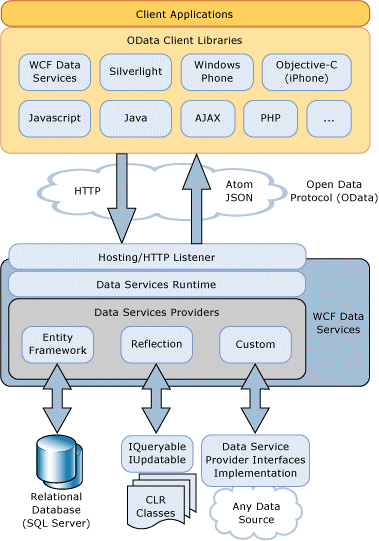
Like SOAP web services, REST web services are platform independent and
language independent. You can implement your client on for example UNIX
or Windows and use any language. All popular languages (like VB.Net, C#,
Java, JavaScript, Python, etc.) offer libraries to make the use of REST
services easy.
Although REST is a lightweight architecture it offers all
functionality also available with for example SOAP. REST offers all four
CRUD (create, read, update and delete) operation by using HTTP requests
(PUT, GET, DELETE). Please note that not all Exact web services
implement all four CRUD operations.
To exchange the data Exact uses the open data protocol. Exact has
implemented two data schema’s that can be used:
1) Atom XML
2) JSON
In a .Net environment Atom XML is most convenient, because .Net
offers a good XML library. In a JavaScript environment JSON will be
preferred, because JSON is a text representation of a JavaScript Object.
Exact Globe REST services are not governed by IIS and the service model
credentials, therefore you must authenticate yourself. The Exact web
services use NTLM as authentication mechanism. Beside this there is some
extra information that must be passed with a HTTP request to use the
correct company (database). In the HTTP request header you must provide:
See below for an example of the HTTP header:
GET http://dijk177740-vpc2:8020/services/Exact.Entity.REST.EG/Account/?$top=10&$filter=DebtorCode%20eq%20'%20%20%20%20%20%20%20%20%20%20%20%20%20%20%2060089'
HTTP/1.1
ServerName: (local)\SQL2012
DatabaseName: MacBean_GL
Content-Type: application/atom+xml
Accept: application/atom+xml,application/xml; charset=utf-8
Host: dijk177740-vpc2:8020
Connection: Keep-Alive
By default Exact REST services are configured to use port 8020, you
can change this in the Exact.WindowsService.config configuration file
(Program Files\Exact Software\XMD).
Below are some web sites that might
come in use when developing with REST services.
Also the Exact database documentation: 10.517.110 will be useful.
To implement clients that consume REST
services a couple of tools come in use.
- Development environment like:
- Visual studio 2012
- Eclipse
- Browser:
- Internet explorer
- Firefox
- Chrome
- Network monitor tools:
- Text editors:
- Notepad++ (with XML tools)
- UltraEdit
- XML Spy
The examples in this document are written in VB.Net. All examples
are in a single .Net 4.0 windows form application. In the text the
main functions will be discussed. To develop and test the examples I
used the following tools:
- Windows 7
- Exact Globe Next 405 (with a Mac Bean demo database)
- Visual studio 2012
- Internet explorer
- Fiddler
- Notepad++
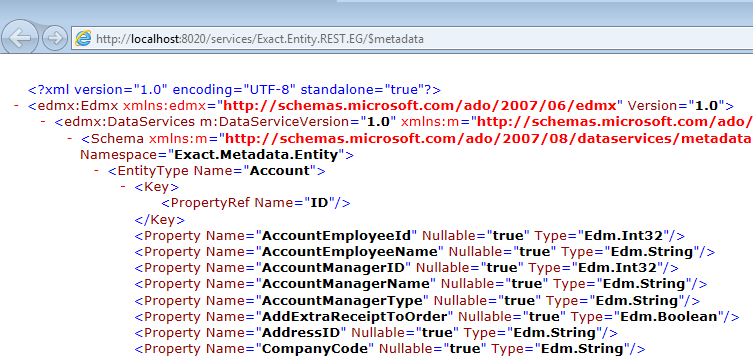
To retrieve metadata you can simply call
the metadata REST service. For this no authentication or HTTP headers are
needed.
http://localhost:8020/services/Exact.Entity.REST.EG/$metadata
This service returns an XML file with the metadata of all available entities.
The most simple operation is retrieving data. This can
be done with a simple HTTP GET request without any data payload. You can use
“open data URL queries” to filter, sort and select data.
- $top
- $filter
- $select
- $orderby
$top is used to pass the (max) amount of records you want to retrieve.
$filter is used to pass the filtering you want to apply on the data. The
following logical operations are supported:
- eq Equal
- ne Not equal
- gt Greater than
- ge Greater than or equal
- lt Less than
- le Less than or equal
- and Logical and
$select is used to limit the properties that are retrieved. This is a comma
separated list of property names.
$orderby is used to define the order of the records that are retrieved. This
is a comma separated list and you can make use of asc and desc to change the
sort order.
Combining the different operations, an
URL to retrieve a debtor can look like:
http://localhost:8020/Services/Exact.Entity.REST.EG/Account/?$top=10&$filter=DebtorCode
eq ' 60089'&$orderby=DebtorCode&$select=DebtorCode
The most important properties of the debtor entity are:
|
Field
|
Property
|
Value
|
Example
|
|
Debtor code
|
DebtorCode
|
Contract number from Euroweb CRM. Value will
have less than 20 character and is numeric
|
12345678
|
|
Debtor name
|
AccountName
|
Customer name
|
Red bean coffee GmbH
|
|
Address 1
|
AddressID@VIS
|
Visit address including house number of the
customer
|
Hansallee 299
|
|
Address 2
|
AddressID@VIS
|
Optional: extra address line for example if
address 1 is too short
|
|
|
Postal code
|
AddressID@VIS
|
Postal code
|
12345
|
|
City
|
AddressID@VIS
|
City
|
Karlsruhe
|
|
Country
|
AddressID@VIS
|
(ISO) Country code of customer
|
DE
|
|
Phone number
|
PhoneNumber
|
Phone number
|
1234-567890
|
|
Fax number
|
FaxNumber
|
Fax number
|
1234-567899
|
|
Email
|
EmailAddress
|
Email address
|
Peter.von.Munchhause@Redbean.de
|
|
Payment condition
|
PaymentCondition
|
Payment condition code to be used in Exact
Globe
|
07
|
|
Title
|
JobTitle
|
Title code of the main contact person
|
HR
|
|
Initials
|
ContactInitials
|
Initials of the main contact person
|
P.H.M.
|
|
First name
|
ContactFirstName
|
First name of the main contact person
|
Peter
|
|
Middle name
|
ContactMiddleName
|
Middle name of the contact person
|
Von
|
|
Last name
|
ContactLastName
|
Last name of the main contact person
|
Munchhausen
|
|
Job description
|
JobTitleDescription
|
Job description of main contact person
|
Geschaftsfuhrer
|
The visit address information must be retrieved using the “Address” service.
The ID can be retrieved from the “AddressID” property with attribute “@VIS”.
The example application uses some help
functions:
Private
Function
RequestAndResponse(ByVal
xml
As
String,
ByVal
method
As
String,
ByVal
url
As
String)
As
String
Private
Function
GetPropertyValue(ByVal
xml
As
String,
ByVal
p
As
String)
As
String
Private
Function
CreateXMLDoc(ByVal
entity
As
String)
As
XmlDocument
The function RequestAndResponse is used to create the HTTP request,
send it to the REST service and retrieve the response message.
In this function an HttpWebRequest is created and the following
properties are set:
- Credentials (You have to use NTLM credentials)
- Headers
- ServerName (This is the SQL server name of the Globe company)
- DatabaseName (This is the Globe company (database))
- ContentType (This is the type of the payload, in this case atom+xml)
- Accept (This is the type of the response, in this case also atom+xml)
- Method (This is the HTTP method, GET, POST, DELETE)
With httpRequest.GetResponse() the HttpWebResponse object is retrieved.
The function GetPropertyValue is used to retrieve the value of a property
from the response xml.
This function is a help function to extract property values of the entity
from the response message. It is important to realize that the response
message has multiple namespaces, so you must specify the namespaces in your
XPath query.
The CreateXMLDoc function will be discussed in the next chapter.
This function creates the skeleton of the XML payload to send with the HTTP
POST request.
Retrieving a debtor is done in:
Private
Sub RetrieveDebtor()
In the RetrieveDebtor method you can see that no XML payload is
send with the HTTP request. It calls the REST services with a HTTP request
with the GET method and a URL with some query options.
The data payload xml and response xml are written to the TextBox:
tbMessage. You can also use Fiddler to inspect the RAW HTTP messages.
Beside retrieving data the REST web
services can also be used to create data. (Updating data is a combination of
retrieval and creating.)
For creating data you must use the POST method of the HTTP request and send an XML payload with the data. Like retrieval you must pass the database name and server in the header of the request. The payload is an XML message using the atom+xml protocol.
The most important properties of the BankAccount service are:
|
Field
|
Field
|
Value
|
Example
|
|
Debtor GUID
|
AccountID
|
Debtor GUID as used in Exact. Getting the GUID is
done using the following steps:
Request debtor data from CRM using the debtor
code
Receive debtor GUID from Exact Globe
Pass debtor GUID to bank account service
|
4F017C70-8178-4B2D-A885-C08F46530B30
|
|
Bank account number
|
BankAccountNumber
|
The bank account number of the debtor (this could
also be the IBAN number)
|
111-111-11 1111111111
|
|
Bank account type
|
BankAccountType
|
Bank account type
|
DE
|
|
IBAN
|
IBAN
|
The IBAN number of the bank account number
|
DE63111111111111111111
|
|
BIC Code
|
BICCode
|
The BIC code belonging to the bank account number
|
MARKDEFF
|
|
Account number
|
AccountNumberBank
|
The account number with the bank
|
111-111-11 1111111111
|
|
SWIFT address
|
SWIFTAddress
|
The SWIFT address belonging to the bank account
number
|
MARKDEFFXXX
|
|
Bank code
|
BankAccountCode
|
The bank code belonging to the bank account
number
|
MARK
|
The example uses a help function to
create the basic XML skeleton for the data payload:
Private
Function
CreateXMLDoc(ByVal
entity
As
String)
As
XmlDocument
The function CreateXMLDoc is a help function to set up the basis
of the XML message that will be send as payload with the HTTP request (method
POST).
Below is an example of the XML message that will be send to create a bank
account.
<?xml
version="1.0"
encoding="utf-8"
standalone="yes"?>
<entry
xmlns:d="http://schemas.microsoft.com/ado/2007/08/dataservices"
xmlns:m="http://schemas.microsoft.com/ado/2007/08/dataservices/metadata"
xmlns="http://www.w3.org/2005/Atom">
<category
scheme="http://schemas.microsoft.com/ado/2007/08/dataservices/scheme"
term="Exact.Metadata.Entity.BankAccount"
/>
<title
/>
<author>
<name
/>
</author>
<updated>2012-12-04T10:21:54.2535732Z</updated>
<id
/>
<content
type="application/xml">
<m:properties>
<d:AccountID>{e11c4af3-7fa9-4a61-9152-4a8b7743f911}</d:AccountID>
<d:BankAccountType>NL</d:BankAccountType>
<d:BankAccountNumber>0417164300EUR</d:BankAccountNumber>
<d:IBAN>NL91ABNA0417164300</d:IBAN>
<d:BICCode>ABNANL2A</d:BICCode>
<d:AccountNumberBank>0417164300</d:AccountNumberBank>
</m:properties>
</content>
</entry>
Please be aware that the XML message contains three different namespaces.
It is important to give the XML elements the correct namespace otherwise the
server does not interpret your message correctly.
The CreateXMLDoc function creates all XML notes except the
dataservice nodes (namespace alias “d”) these are filled in the CreateBankAccount function.
The bank account is created in:
Private
Sub
CreateBankAccount()
The CreateBankAccount sub adds the dataservice nodes to the XML with the
properties of the bank account you want to create. You link the bank account
to the debtor on basis of the GUID of the debtor.
element = doc.CreateElement("d",
"AccountID",
NS_DATASERVICE)
element.InnerText =
"{e11c4af3-7fa9-4a61-9152-4a8b7743f911}"
'GUID of the debtor
properties.AppendChild(element)
To create a (sales) journal entry you
have to use two different web service calls; one to create the header of the
entry and another to create the lines of the entry. These calls are linked
to each other by a transaction key.
You first have to create all lines of
the entry. When you create the first line a transaction key is generated and
returned. You must provide this key with the subsequent lines and header.
After you created all lines you must create the header line. At that moment
the complete entry (lines and header) are validated and committed to the
database.
The most important properties of the
sales journal header (“FinancialHeader”) service are:
|
Field
|
Property
|
Value
|
Example
|
|
Journal code
|
Journal
|
The sales journal code
|
50
|
|
Date
|
EntryDate
|
The sales invoice date
|
31.12.2013
|
|
Entry number
|
EntryNumber
|
Invoice number from CRM
|
12100001
|
|
Debtor code
|
DebtorNumber
|
Debtor number belonging to the Debtor
code/contract number from CRM
|
850012
|
|
Our reference
|
OurReference
|
Invoice number from CRM
|
12100001
|
|
Amount
|
Amount
|
Total amount (including VAT)
|
125
|
|
Payment condition
|
PaymentCondition
|
Payment condition code applicable for
this invoice
|
55
|
The most important properties of the sales
journal line (“FinancialLine”) service are:
|
Field
|
Property
|
Value
|
Example
|
|
General ledger account
|
GLAccount
|
The general ledger account code (used in
the financial administration)
|
8000
|
|
VAT code
|
VATCode
|
The VAT code to be used. If the VAT
amount is delivered separately (in a different line) a VAT code
for zero VAT should be entered here
|
0
|
|
Amount
|
Amount
|
Line amount (excluding VAT)
|
125
|
|
Description
|
Description
|
A description for the line (for example a
description of the service)
|
Setup fee
|
The following methods and functions
are used in the demo application to create a sales journal entry:
Private
Sub
CreateFinEntry()
Private
Function
CreateFinLine(ByVal
transactionKey
As
String,
ByVal
journal
As
String,
ByVal
generalLedger
As
String,
ByVal
description
As
String,
ByVal
amount
As
Double
,
ByVal
vat
As
String)
As
String
Private
Sub
CreateFinHeader(ByVal
transactionKey
As
String,
ByVal
journal
As
String,
ByVal
debtor
As
String,
ByVal
description
As
String,
ByVal
amount
As
Double,
ByVal
paycondition
As
String)
Please note that the basis of the XML message is created in
CreateXMLDoc.
The CreateFinLine function adds the dataservice nodes to the
XML message and does a call to RequestAndResponse to create the
line and retrieve the response from the server. CreateFinLine
returns the transaction key for use in the CreateFinHeader
function.
Return
GetPropertyValue(httpResponse,
"d:TransactionKey")
The CreateFinHeader function creates the header line of the
financial entry. It is important to fill the TransactionKey
property so the server knows which lines and header belong together.
After the server has done a successful validation of all lines and
header data, the sales journal entry is written to the database.
It is also possible to provide your
own payment terms when creating a sales journal entry. If you don’t
provide a payment term Exact Globe Next will generate one for you.
Please note that this is a write only service.
The most important properties of
the payment terms (“FinancialPaymentTerm”) service are:
|
Field
|
Property
|
Value
|
Example
|
|
Entry number
|
EntryNumber
|
Invoice number from CRM
|
12100001
|
|
Due date
|
DueDate
|
Due date for the payment term
|
31.12.2013
|
|
Amount
|
AmountDC
|
Amount to be paid
|
125
|
|
Amount in currency
|
AmountInTransactionCurrency
|
Amount tob e paid in the transaction
currency
|
125
|
|
Currency code
|
TransactionCurrencyCode
|
Currency code of the transaction
|
EUR
|
|
Vat code
|
VATCode
|
The VAT code of the payment term
|
2
|
|
Cash instrument
|
OwnBankAccount
|
Reference to own bank account number
to which the money is transferred (refer to database field:
BankAccounts.BankAccount)
|
44444444EUR
|
|
Method
|
PaymentCondition
|
Payment method
|
Collection
|
|
Type
|
PaymentType
|
Type of payment (refer to database
documentation of field BankTransactions.PaymentType)
|
“C”, on credit; “I” collection; etc.
|
|
Cash instrument customer
|
OffsetBankAccount
|
Existing bank account number linked
to customer (refer to database field: BnkAcc.Banknr)
|
11111111
|
|
Description
|
Description
|
Description for this payment term
|
Invoice
|
|
Transaction type
|
TransactionType
|
Type of the transaction
|
K (sales invoice)
|
|
Status
|
Status
|
Status of the payment term
|
C (entered)
|
|
Type
|
Type
|
Type of the payment term
|
W (installment)
|
|
Offset general ledger
|
OffsetLedgerAccountNumber
|
The debtor or creditor G/L account
used in the financial entry
|
1300
|
For more fields and their allowed values, please refer to the
Exact Globe Next database documentation:
23.945.872. Please note that the database field names might
slightly differ from the property names, but they will be very
similar.
The payment terms must be created
before the financial header line is created. The financial header
line will validate all entry information, including payment terms.
If you don’t provide your own payment term the creation of the
header line will create a default payment term.
The following method creates a (simple) payment term. It includes
the minimum of properties that must be set:
Private
Sub
CreateFinPaymentTerm(ByVal
transactionKey
As
String,
ByVal
amount
As
Double,
ByVal
debtor
As
String,
ByVal
method
As
String,
ByVal
description
As
String,
ByVal
ownBankNumber
As
String,
ByVal
debtorBankNumber
As
String)
The function CreateFinPaymentTerm creates the payment
term. As you can see you need to provide the TransactionKey property
to link the payment term to the sales journal entry. Beside this you
need to provide the amount in the default currency AmountDC
and in the transaction currency AmountInTransactionCurrency.
You must also provide some type and status information:
element = doc.CreateElement("d",
"TransactionType",
NS_DATASERVICE)
element.InnerText =
"K"
'Sales invoice
properties.AppendChild(element)
element = doc.CreateElement("d",
"Status",
NS_DATASERVICE)
element.InnerText =
"C"
'Entered
properties.AppendChild(element)
element = doc.CreateElement("d",
"Type",
NS_DATASERVICE)
element.InnerText =
"W"
'Installment
properties.AppendChild(element)
To retrieve the outstanding amount you have to retrieve the FinancialHeader of a sales entry. This is similar to retrieving a debtor. In the example is also shown how to retrieve all records based on an open query filter.
In addition to the metadata in Chapter 6 there are the following properties that are important for the outstanding amount.
|
Field
|
Property
|
Value
|
Example
|
|
N/A
|
PaymentStatus
|
Payment status of the financial entry:
-
Empty
-
Partailly paid
-
Fully paid
|
Empty
|
|
N/A
|
PaymentReceived
|
Amount of payment received
|
50
|
|
N/A
|
PaymentReceivedTC
|
Amount of payment received in the transaction
currency
|
50
|
|
N/A
|
OutstandingAmount
|
Amount outstanding
|
50
|
|
N/A
|
OutstandingAmountTC
|
Amount outstanding in the transaction
currency
|
50
|
The example is very similar to the
retrieval of debtor information. Only after the retrieval of the first
record there is a while loop to retrieve all successor records. The
successor record can be found in the <link> property of the response:
<link rel="next" href="http://dijk177740-vpc2:8020/services/
Exact.Entity.REST.EG/FinancialHeader/?$filter=(Journal%20eq%20'%2070')%20and%20(DebtorNumber%20eq%20'%2060089')%20and%20(FinancialYear%20eq%202013)&$top=1&$skiptoken=8604L"
/>
In the function: “RetrieveOutstandingAmount” is shown how to iterate
through all entries. In The function: “GetNextUrl” is shown how the
retrieve the URL of the next record.
Next to retrieving and creating data
it is also possible to update data. Updating is done via the MERGE
operation of the HTTP request.
|
Field
|
Property
|
Value
|
Example
|
|
TextField1
|
TextFreeField1
|
A customer definable text field.
|
A customer text
|
Updating a debtor is done in:
Private
Sub UpdateDebtor(ByVal
debtorCode As
String)
When an entity is updated you must provide the key property, in the
case of a debtor this is the property ID. So first the ID of the
debtor is retrieved (see also the chapter about retrieving debtors).
Next a new XML message is created to update the TextFreeField1
of the debtor. This XML message is send to the REST service using the MERGE operation.
element = doc.CreateElement("d",
"TextFreeField1",
NS_DATASERVICE)
element.InnerText = "updated:
" & Now().ToUniversalTime()
properties.AppendChild(element)
content.AppendChild(properties)
'merge the changes
url
= GLOBE_URL & "Account(guid'"
& id & "')"
response = RequestAndResponse(doc.OuterXml,
"MERGE", url)
The example code has two more
examples:
- Creating a sales order.
- Creating an hour entry.
A sales order is created in
the same way as a financial entry. So first create all the order
lines and next create the header line. All lines and the header
are linked together using the TransactionKey property.
Private
Sub CreateSalesOrder()
Private
Function CreateSOLine(ByVal
transactionKey As
String)
As
String
Private
Sub CreateSOHeader(ByVal
transactionKey As
String)
Creating an hour entry is
very similar to creating a debtor. It is a single entity.
Private
Sub CreateSOHeader(ByVal
transactionKey As
String)
It’s also possible to call
the REST services from a VB6 application.
In
VB6RestDemoGlobe.zip you find an example on how to
retrieve and create an account. The code is very similar to the
VB.Net example.
In
VB6RestDemoMandate.zip you find an example on how to
upload a mandate to a bank account using VB6.
In
AJAX_EGN_REST_Demo.htm you
find and example on how to retrieve, update and create accounts
using Javascript. Please note that normally you will not run
this kind of code client site. It’s just to show that the use of
the Globe services is platform independent.
|
 |
|
Document Number: 26.572.433
Disclaimer
|
|
|
|