How-to: Using Exact Synergy Enterprise Document Downloader
Introduction
Exact Synergy Enterprise Document Downloader allows you to download documents (as well as the attachments in the documents) available in your Exact Synergy Enterprise application to your computer. The documents and attachments (if any) are downloaded to the specified folder, allowing you to access crucial information later on without the need to connect to the internet. You will need to install the application before you can use it. For more information, see How-to: Installing and Uninstalling Exact Synergy Enterprise Document Downloader.
This document provides a step by step guide on using Exact Synergy Enterprise Document Downloader.
Roles and rights
To use the Document Downloader, you need the Administrator role and function right 443 – Document administrator - Corporate level.
Note:
-
For more details on function rights, go to Modules > System > Setup > Security > Function rights.
-
For more details on roles, go to Modules > System > Setup > Security > Roles.
What version are you using?
The information in this document is applicable to product update 506 and higher. If you have a version lower than this, certain features explained here will not be applicable.
Buttons
The buttons are described in the relevant sections.
This document is divided into the following sections for better viewing:
You can specify the folder where all the downloaded documents and attachments will be saved to.
To specify the folder:
1. Double-click the ESEDocumentDownloader.exe shortcut that has been created at your desktop. You will see the following screen:
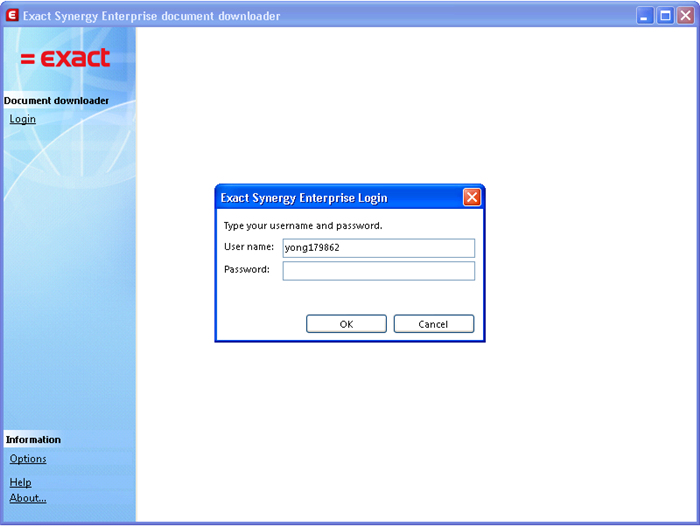
2. Fill in your user name and password, and then click OK. The following screen is displayed:
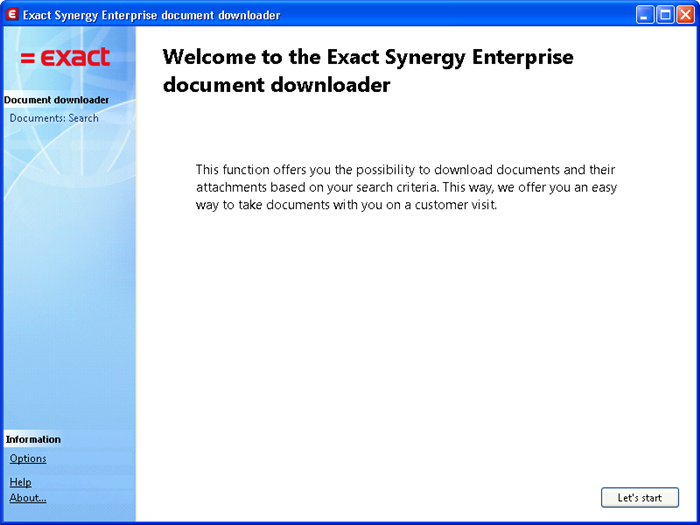
3. Then, click Options in the left menu. The following screen is displayed:
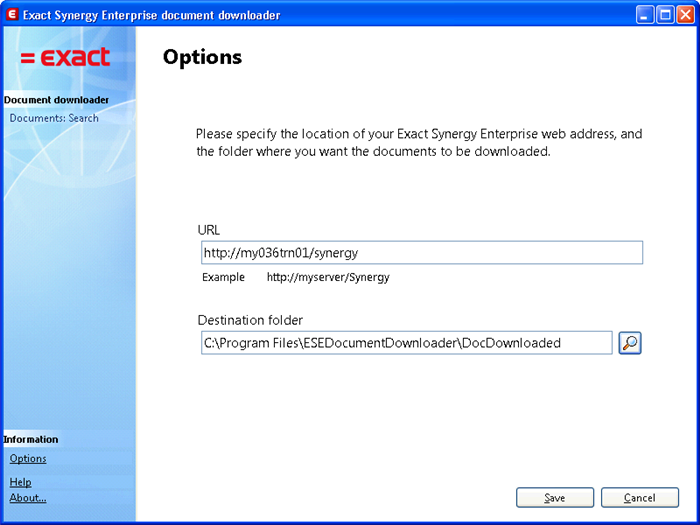
4. At Destination folder, you can click  to specify the location where the documents or attachments will be downloaded.
5. Finally, click Save.
Top
Downloading multiple documents and attachments
To download multiple documents and attachments:
1. Double-click the ESEDocumentDownloader.exe shortcut that has been created at your desktop. You will see the following screen:
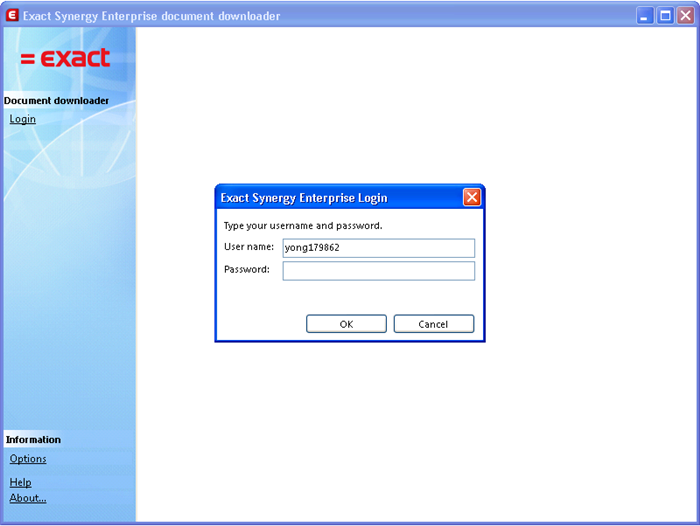
2. Fill in your user name and password, and then click OK. The following screen is displayed:

3. Click Let’s start to begin your search for documents. You will see the following screen:
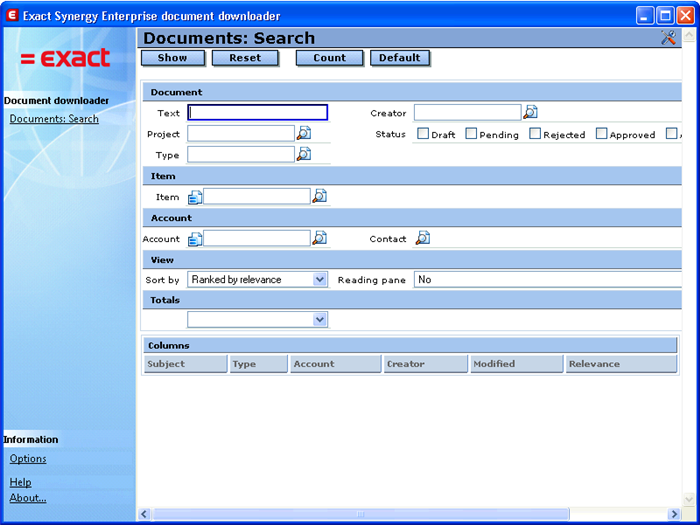
4. Fill in the relevant information in the filter criteria. You can click  Customize to add or remove criteria from the screen.
5. Next, click Show. The documents that match the defined criteria will be listed, as displayed in the following screen:
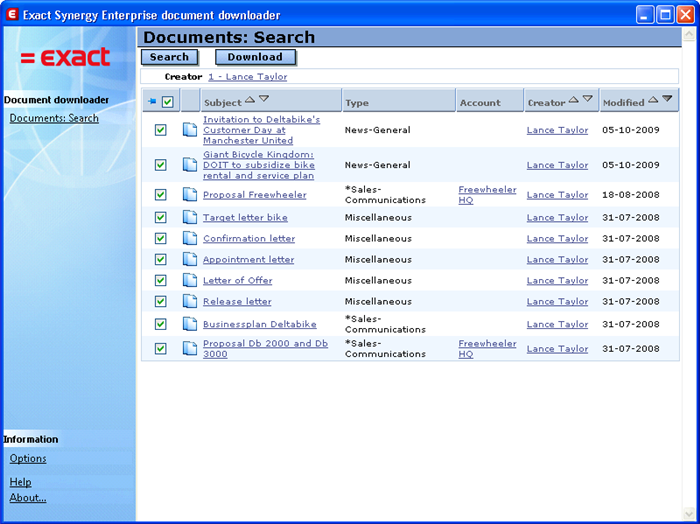
6. Then, select the check boxes next to the relevant documents that you want to download. By default, all the check boxes will be selected.
7. Click Download to download the selected documents and the attachments (if any).
8. Once the downloading process is completed, you will see the following screen:
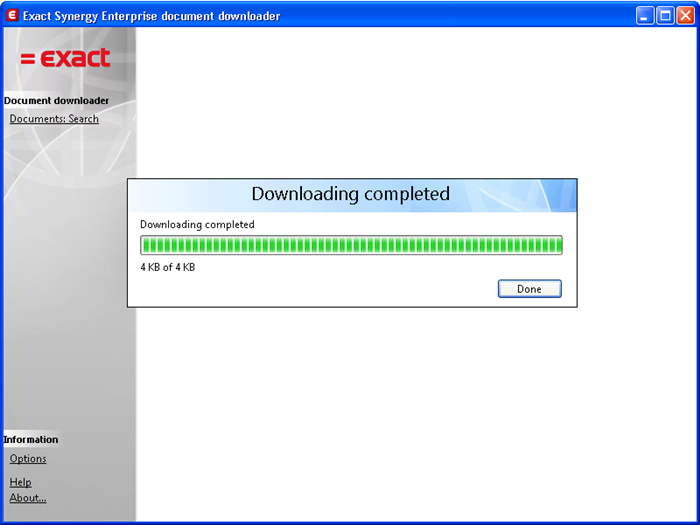
9. Click Done. You can repeat Step 4 to download more documents and attachments if required. Otherwise, you can close the application.
Top
- The document body be saved as a HTML file with the format: <ID of the document> - <name of the document>.
- The document attachment will be saved as the original file type with the format: <ID of the document> - <name of the attachment>.
- If a document is empty but contains attachments, a HTML file will still be created. A message will be embedded in the HTML file to denote that.
- If a document is empty and does not contain any attachment, a HTML file will still be created. A message will be embedded in the HTML file to denote that.
Top
Related document
| Main Category: |
Attachments & notes |
Document Type: |
Online help main |
| Category: |
|
Security level: |
All - 0 |
| Sub category: |
|
Document ID: |
19.668.584 |
| Assortment: |
Exact Synergy Enterprise
|
Date: |
05-06-2026 |
| Release: |
|
Attachment: |
|
| Disclaimer |